01
Start with the click
Choose a tempo and time signature, press Start and adjust the sound for your setup.
02
Add only what you need
Open a guide topic for trainers, setlists, chord sheets, overlays, band sync or connected equipment.
03
Test before the performance
Check audio routing, permissions and connected hardware in the same setup you will use on stage.
Complete instructions
Complete instructions
Eight topics cover the same instructions as the app. Each topic opens into short, named sections so you can scan first and read the detail you need.
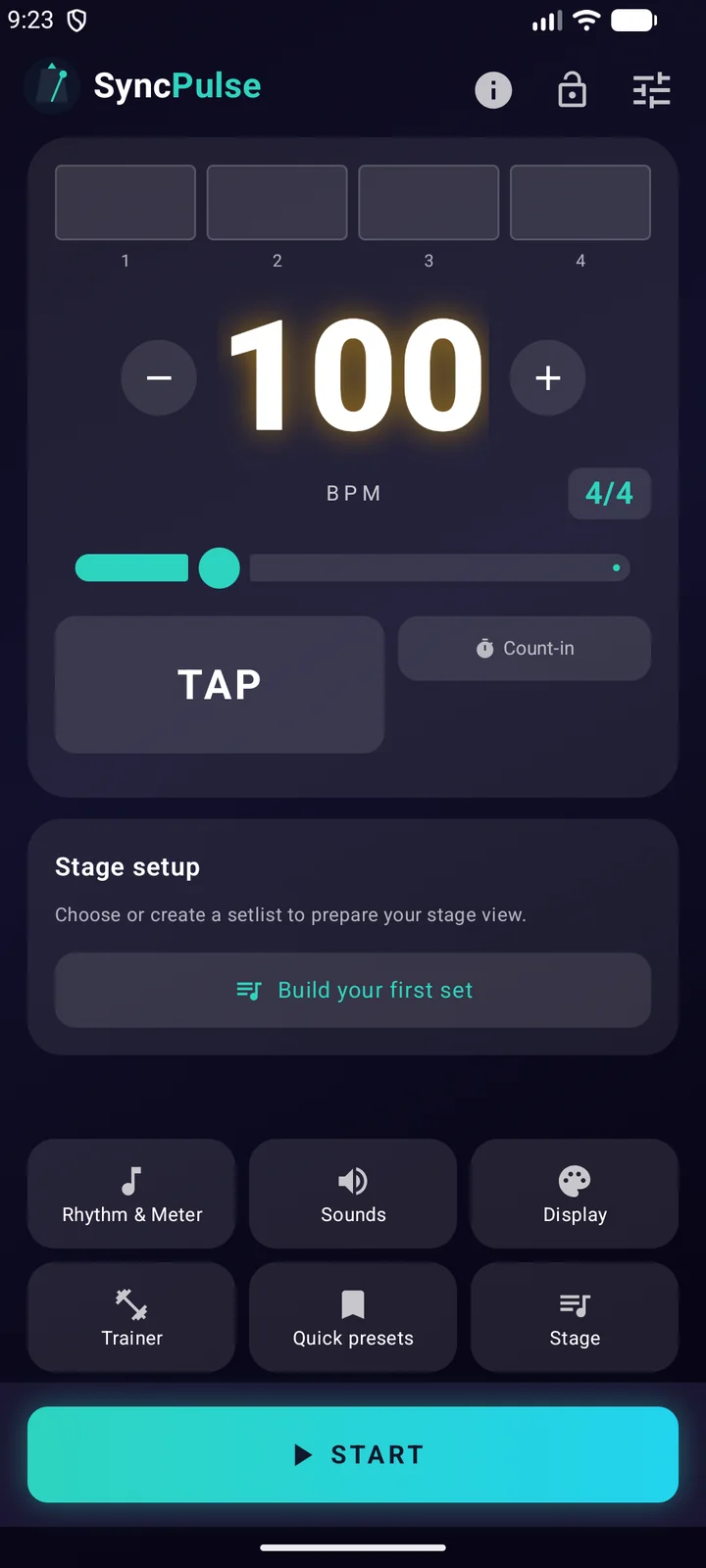
01Metronome & RhythmsSyncPulse offers a highly precise metronome from 30 to 300 BPM.
Setting the tempo
Tap the minus or plus button to adjust the tempo. With Decimal BPM enabled, each tap changes 0.1 BPM; otherwise it changes 1 BPM. Hold either button to change faster. Tap the BPM number for exact input, or use the slider for a large adjustment.
Time Signatures
Choose from standard meters (4/4, 3/4) to complex ones like 7/8 or 15/16. You can even create compound meters like 6/8 and group beats however you like (e.g., 3+3 or 2+2+2).
Subdivisions
Add clicks between the main beats. The dots under each choice preview its spacing before you select it; Swing therefore looks uneven. Common and Creative choices are both available directly in Rhythm & Meter.
02Sounds & RoutingCustomize the click to cut through the mix.
Sound Selection
Pick from 10 distinct sounds for the main beat, accents, and subdivisions independently.
Volumes
The volume sliders belong to the current song: in a setlist every song keeps its own volume and beat volumes (Accent tab). To silence everything at once, use Sound off at the bottom of the Sounds panel: click, count-in and spoken cues stop in every song while the beats, overlay, band sync and backing tracks keep going. During a live setlist the speaker in the top bar switches it too (amber while the sound is off, not while the stage lock is on). A banner on the main screen and a 🔇 in the overlay remind you it is on; with the stage lock on, tapping the banner does not turn it back on. SyncPulse turns the sound back on after an app restart so you never start a gig silent. Values above 100% boost the click and can add extra grit or distortion.
Spoken count-in & cues
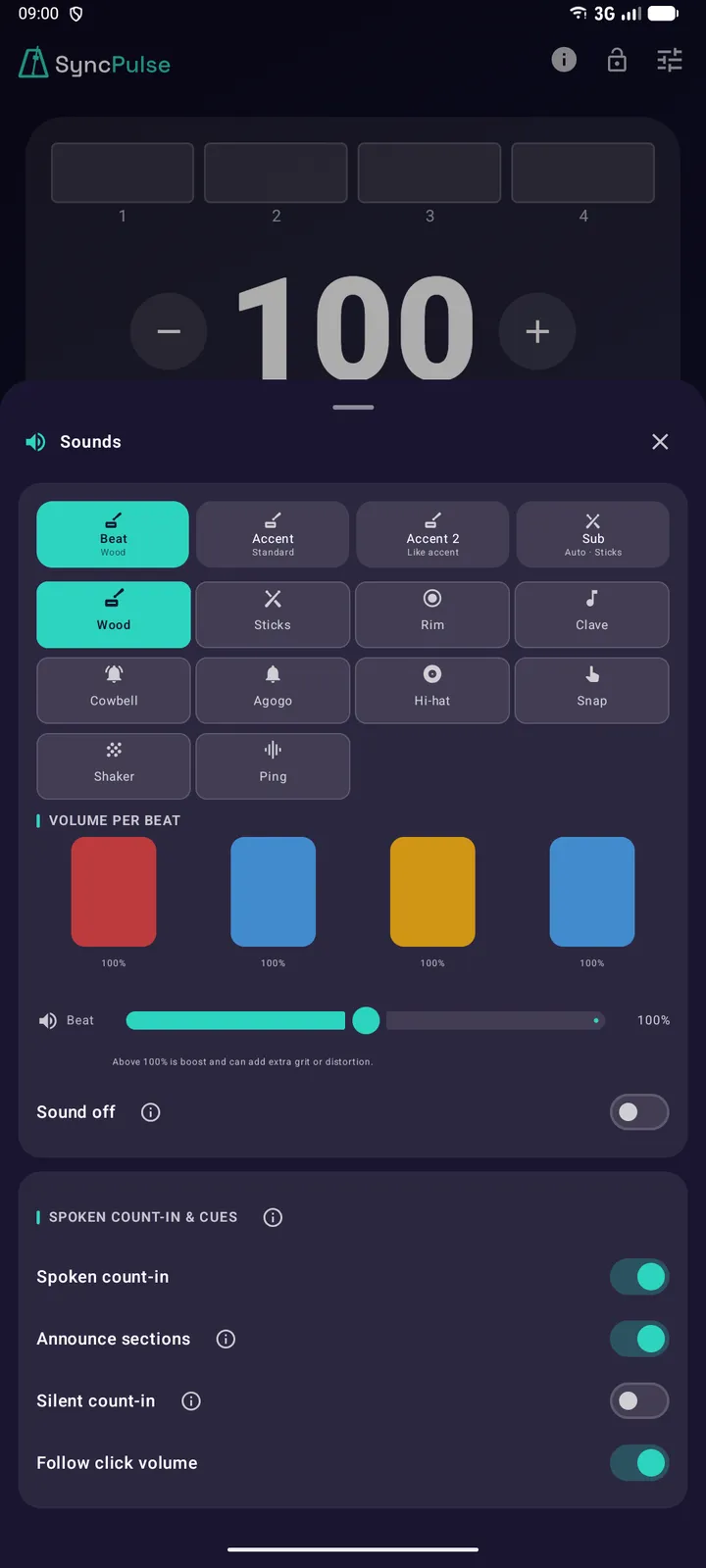
Sounds → Spoken count-in & cues: Michael counts you in and says the name of the next section, in English. The count always sounds and speeds up with the tempo; if a number does not fit the beat, that bar is counted again from 1, and at very high tempos a word is cut short by the next. Into the next section the app counts as many bars as your count-in. Announce sections also plays the cues you place per section: in the section editor, under Other → Spoken count-in & cues, put English cues such as "Drums in" or "Last time" on a bar and beat. There you can also switch the spoken count-in or the announcement on or off for one section, and choose how its name is spoken. Section names and cues always sound, even when they run on over the count. The voice follows the click volume unless you give it its own. In a band the leader’s set decides which counts, names and cues there are, and every member hears them with their own switches and volume. Silent count-in mutes only the count-in, not the count into the next section.
03Trainer ModeImprove your internal timing with the built-in Trainer.
Tempo Increments
Automatically increase or decrease the tempo by a set BPM every X bars. Great for pushing your speed limits.
Gap Training
Mute the click for several bars, then bring it back. If you're still on the beat when it returns, your internal clock is rock solid.
04Setlist ModePrepare your entire gig in advance.
Creating Setlists
Stage keeps Song library and Stage settings at the top, with the Band mode button under them: it shows On or Off, and below it the route (Bluetooth or Ableton Link). Create a setlist or tap a row to open Prepare. The strip on the left of a setlist, with its number, gets it ready to play: the main screen then shows that setlist in Setlist Mode, at song 1 from the top, with START underneath. The setlist that is ready or playing has the filled number. Search by name or choose Custom order, A-Z or Z-A. In Custom order, hold the handle on the right of a setlist and drag it to a new place; A-Z and Z-A only change the view. The three-dot menu lets you rename, duplicate, export or delete with confirmation. Duplicate makes a separate copy at the end of the list, for a variant of the set. Export can share or save CSV and Excel files through Android's file picker. While a set is playing or paused, its row says so, and the other setlists stay closed until you stop it.
Preparing a setlist
Prepare shows the name of the set, how many songs it has, its estimated length and the song it starts at, or resumes at when the set is paused; when that is not the song's first section, it names the section too. Tap a song to open it, or one of its sections to open that section; Start here at the bottom of the section editor makes the set start there and brings you back here. The strip on the left of each song, with its number, is Start here for the whole song: the set then starts at that song, from the top, and the song it starts at has the filled number. Between two songs sits the switch Continue after this song: tap it to decide whether the song above runs straight into the next one or stops there. It shows what is stored. Sometimes a switch that is on cannot act: a song that ends on a fermata always waits, and a song without a set length plays until you move on. The line under the switch then says Not active and why. Each song has a three-dot menu to start there, duplicate it or remove it; swiping a song to the left removes it too. Removing always asks first, and for a few seconds afterwards you can still tap Undo. Hold the handle on the right to drag a song to a new place. While the stage lock is on or a set is playing you can look but not edit, and a tap on a song goes to that song. The start button says which song it starts or resumes at, and the section too when that is not the first. When the set is stopped or paused, the list stays where you scroll or reorder it. It follows the current song only during playback.
Song Sections
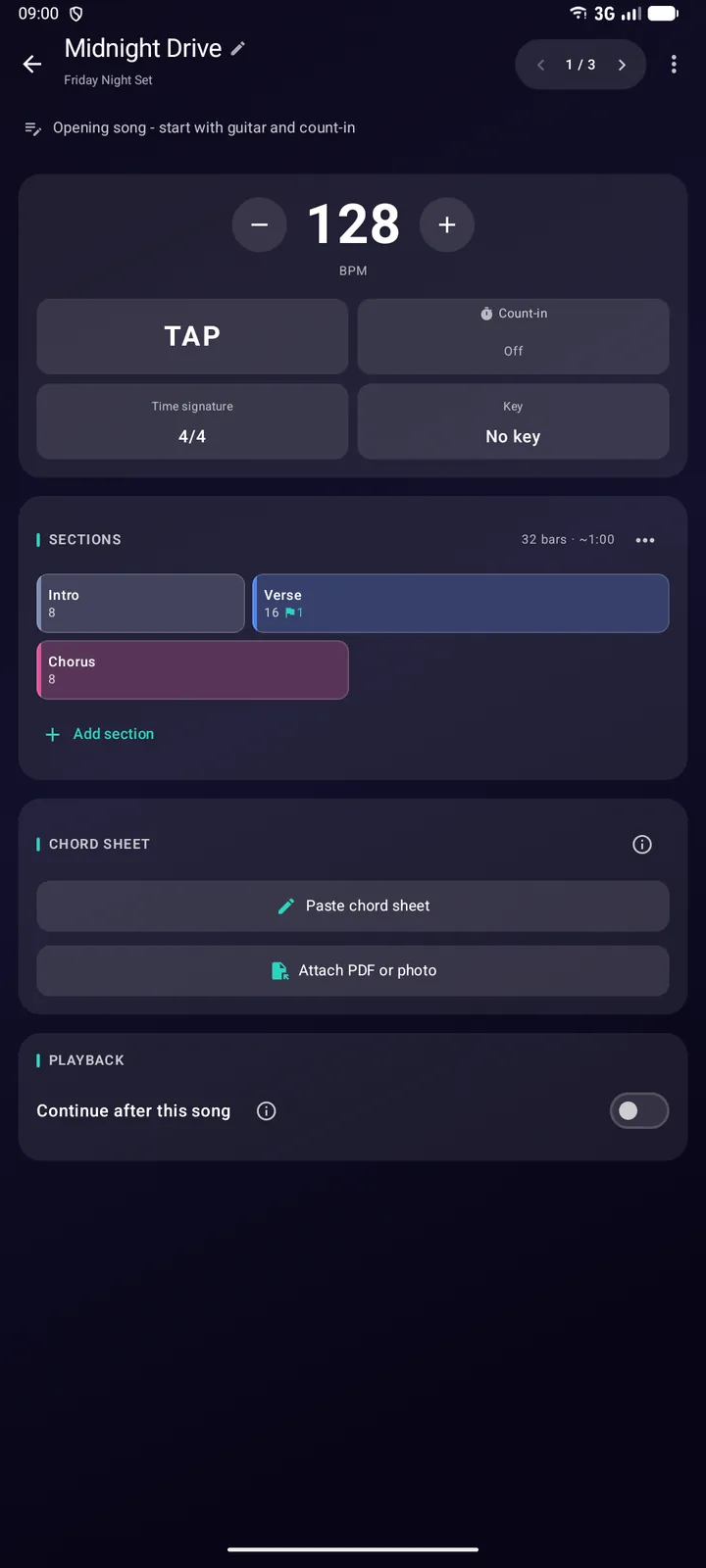
Break songs into sections (e.g., Intro, Verse, Chorus) with automatic bar-based transitions or manual triggering. At the top of the song editor sit the song's tempo, with TAP and the count-in next to it, and its time signature and key: tap one of those two to pick from a list. Changing them moves every section that plays them, while a section with a tempo, time signature or key of its own (a faster bridge in 7/8) keeps it. Below them, Sections shows the song like a chart: one block per section with its bars, in lines, in the colour of its kind (intro and outro slate, verse blue, pre-chorus violet, chorus pink, bridge green, solo sand), and next to a block only what differs from the song: its own tempo or time signature, rit./accel., a fermata or cues. A new song is one open section. Tap Intro, Verse, Pre-chorus, Chorus… under the chart in playing order: the first one names that section, every next one is added with a musical length (Intro 4, Verse 16, Chorus 8 bars) and takes over the tempo, time signature, rhythm, sound and key of the last one. If the last section is open, it first gets its own length, which you can undo. Other name… adds a section with a name of your own. Once a song has sections, these choices fold into one line under the chart: + Add section. Hold a block and drag it to move the section; a bar shows where it lands. Tap a block to open the section editor. Section holds its name, its length (1 to 32 bars, No end or any number) and its tempo with TAP; Rhythm, Sounds and Other hold the time signature, beats, subdivision, sounds, cues, key and the tempo curve. At the bottom, on every tab, are Start here (in a setlist) or Play from here (in the library), Copy and Delete. At the top, ✕ closes it and ‹ › moves to the previous or next section. Type or tap the form builds the whole form at once: write it like on a setlist, such as I4 V16 C8 V16 C8 B8 C16 O4 (full names in your language work too, and x2 repeats a section), pick a ready-made form, or tap along with the recording: tap a section the moment it starts and Done when the song ends, and the bars are counted from the gaps at the song tempo. Nothing changes until Use this form, and you can undo it. The Structure options menu turns the song back into one tempo: you choose which section stays and can undo it right after. The song editor estimates the song's playing time; a section with No end has no fixed length, and + in a setlist total means it contains one or more of them. Queued and automatic section changes finish the outgoing beat, including its subdivisions, before applying a new time signature or count-in. Natural stops and backing-track transitions finish the final beat. The next backing track is prepared while the previous one is still playing.
Tempo curve, fermata and meter cycle
A section does not have to stay the same. Open a section and you will find three settings on its Other tab. A tempo curve slows down or speeds up towards the end of the section - set the closing tempo and, if you only want the ritardando in the last few bars, over how many bars it should run; the final beat of the section is exactly the tempo you typed. A fermata holds the click on the last beat of the section until you press play again (overlay, footswitch or Start), so the band can hang on a chord. A meter cycle repeats a sequence of time signatures, one per bar - 7/8 + 4/4, for example - instead of asking you to make a separate section for every bar; the click switches on the bar line and keeps the underlying pulse the same, so the BPM number changes with the denominator while the music does not. All three travel with the song through save, copy, CSV export and import. In a band session the leader plays the curve and the cycle, and the other devices follow; a follower never runs them by itself.
Spoken count-in per section
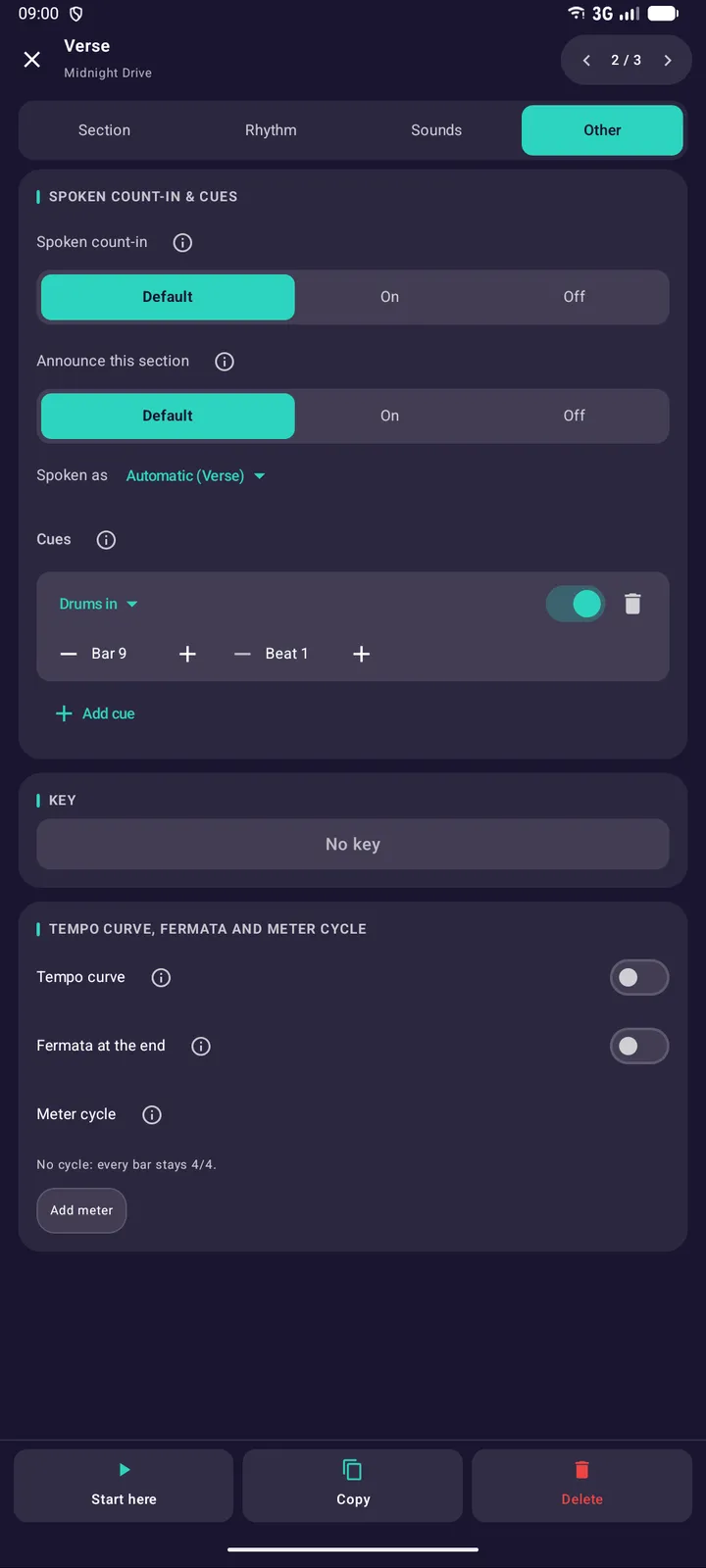
The Spoken count-in switch in the Sounds panel applies to every song. To be counted in only where you need it, say just before the first verse, open that section, go to its Other tab and set Spoken count-in to On; set it to Off to keep one section quiet while the switch is on. Default simply follows the switch. The setting counts you into the section: the count-in before it and the spoken count-off in the bar that leads into it. It travels with the song through save, copy, CSV export and import. A silent count-in stays silent, and in band mode every follower uses its own switch.
Stage & setlist
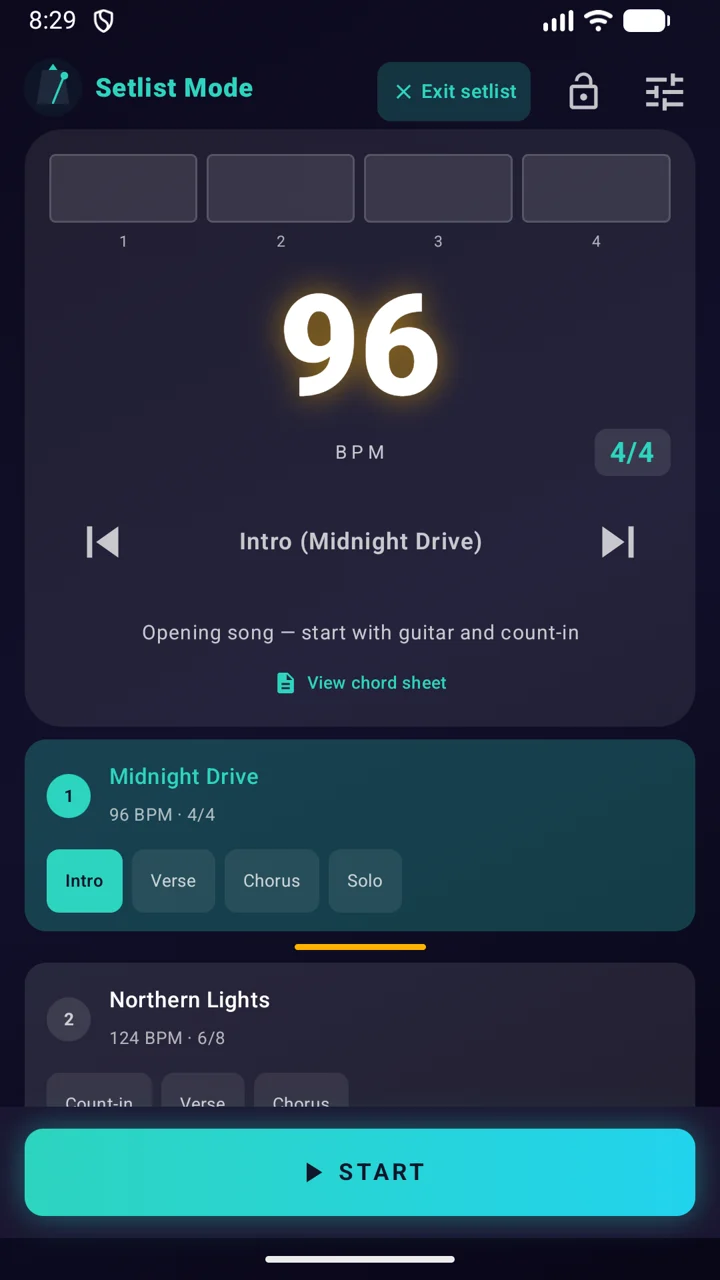
Android Back returns from the active setlist view to the standard metronome screen without stopping playback. Tap Setlist Mode to return to the active set. Use the Stage button on the standard metronome screen to open your prepared set. The main screen no longer reserves space for setup; only an active band connection appears there as a compact status. When a setlist is active, the main screen simplifies to show only what you need for the gig. The gear at the top opens Stage for the rest, and it disappears when you lock. With the stage lock on, you hold STOP to stop. While the set plays you also hold to jump: the song and section arrows, or a song or section in the list, here, in the chord-sheet view and on the overlay. Paused or stopped, one tap still moves the set. Between songs, a striped green marker means the set continues automatically; a solid amber marker means playback pauses. In Prepare that marker is a switch you can tap. While nothing is playing, a button under the song list opens the setlist for editing; it disappears as soon as the set starts. The beat bars stay small here so the song list keeps its place; switch on Big beat bars in a setlist under Display if you would rather have them grow while you play.
Moving between songs
On the setlist screen the previous/next song arrows sit either side of the START/STOP button, the same place they have in the chord-sheet view, and they are deliberately large so you can hit them without looking. They grey out at the first and last song of the set. Under Stage settings → Playback you choose when the jump lands: after this bar (the default) or after this section, both with a count-in so the band lands together, or instantly, on a fresh downbeat at the new tempo and with no count-in. Moving between sections inside a song is unchanged.
Song library
The song library holds every song on its own, independent of any setlist, so you build it once and drop songs into whichever set needs them. Tap a song to open it, the play button loads it into the metronome, and its three-dot menu duplicates or deletes it. New song asks for its name first; in the editor, tap the name at the top to rename the song. By default the list keeps the order in which songs were added, so an imported CSV reads exactly like the file. The button next to the song count sorts it Oldest first, Newest first, A-Z or Z-A; that only changes what you see, never the stored order or the sections inside a song. Newest first is the quickest way to find back what an import just brought in. When you add a song from the library to a setlist, the list you pick from has the same button, keeps the same order and has a search field. Select starts selection mode: tick songs, or Select all, and export or delete them in one go; deleting always goes through a selection, and your setlists keep their own copy of every song. Import and export use the same CSV/Excel table format as a setlist, with one row per section. Export transfers song structure, tempos, timing, notes and text chord sheets; it does not contain backing tracks, PDF/image sheets or every app-only setting, so it is not a full backup. When an imported title already exists, or occurs more than once in the file, SyncPulse asks what to do with every collision: skip it, replace the earlier version, or add it as "Title (1)". Untitled songs receive unique Untitled names in CSV/Excel exports so they remain separate when imported again. Names you choose for the library are kept, including Default. An empty library offers to add the songs from your setlists in one tap, each named song once. Under each song's name a small strip shows its form, the same blocks as in the editor. A quick preset can go into the library too: in Quick presets, tap the library icon in its row and it becomes a song with one open section; the preset itself stays.
Play a song straight from the library
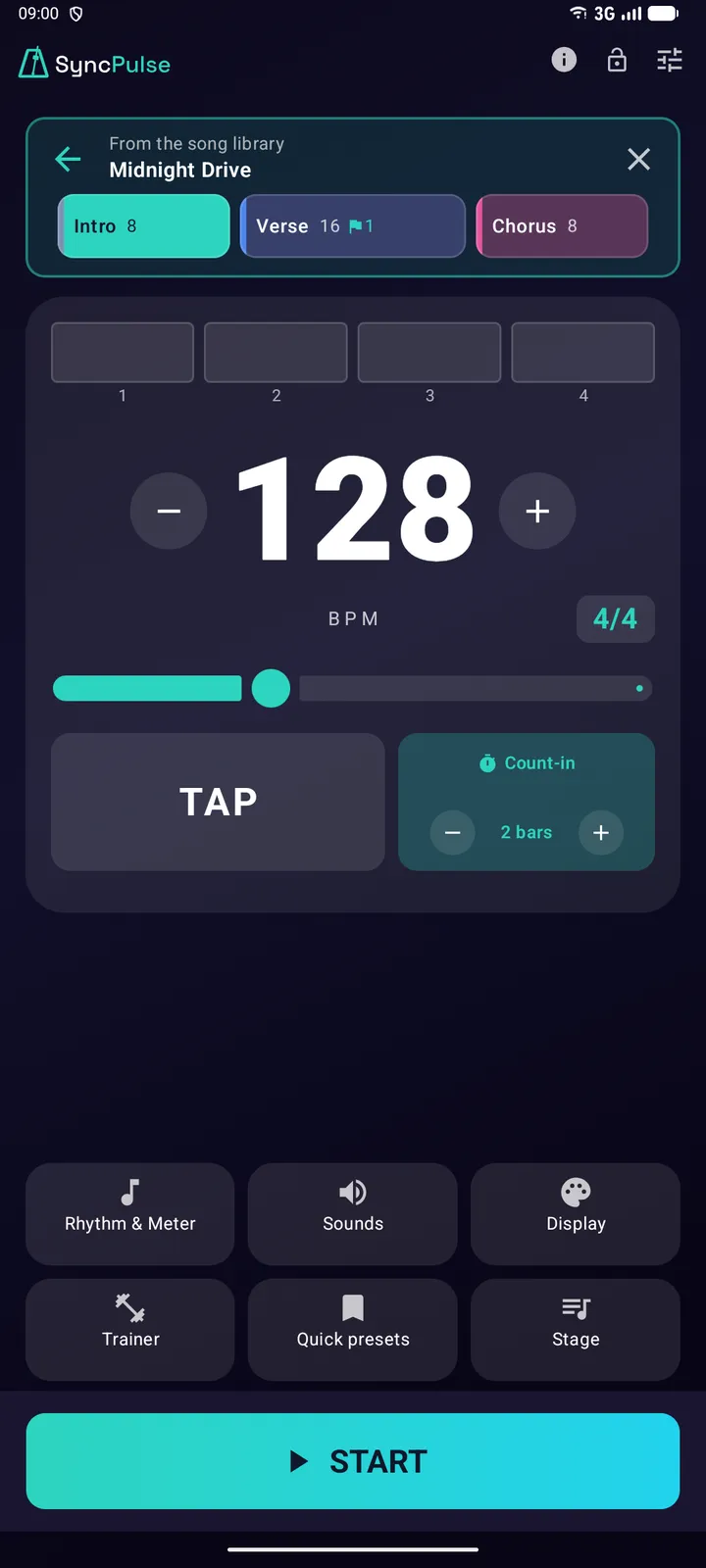
Tap the play button next to a song in the song library to hear it without putting it in a setlist first. The metronome opens with that song's settings: tempo, time signature, sounds, accents and beat colors. A bar above the tempo shows which song is loaded. Press START and the song plays through, section after section on the bar line, with the playing section lit in that bar; tap a section to go there. A section with No end or a fermata waits until you tap the next one, and after the last section the click goes on until you stop it. Changes you make while it plays are not saved to the song. The arrow in the bar takes you back to the library, the cross keeps you on the metronome; both stop the click and bring back your own metronome settings. Starting a setlist closes the song too. The play button is hidden while a setlist is playing or paused, and during a band session. If a setlist is ready but stopped, playing a library song closes it, and a short message tells you so. While you edit a library song, Play in the metronome does the same with the song as it is now, and a section's panel offers Play from here.
Importing songs
The Import button on Stage reads spreadsheets (CSV, Excel), plain-text tables (.txt), OnSong and SetlistMaker files, and MusicXML scores exported from MuseScore, Sibelius, Finale or Dorico (.musicxml and .mxl). The info button next to it offers an example Excel workbook you can save as a file, fill with your own songs and import again. From a score SyncPulse takes the structure only, never the notes: one section per rehearsal mark, each with its own time signature, tempo, key and number of bars. Scores without rehearsal marks are split where the time signature changes. If SyncPulse does not recognise the column headings, it asks which column holds which value instead of refusing the file. Setlist export can share the same layout or save it as a CSV or Excel file, and it re-imports unchanged. Files are picked in Android's own file picker. If a file you just added to Google Drive does not show up there, open that folder once in the Google Drive app and try again.
05Chord SheetsAttach a chord sheet to any song so the setlist can be the only screen you need on stage.
Adding a Chord Sheet
In the song editor, paste or type a ChordPro-style chord sheet, or attach a PDF or one or more photos in their original layout. A song can have both text and fixed-layout versions — you choose which one to view. If the chord sheet states the title, tempo, key, time signature or sections, SyncPulse offers to fill those in for you — it always asks first and only takes what you tick. Sections you already have keep their settings; new ones copy the section before them and have no fixed length unless the chord sheet states one — "Intro (4 bars)" in the heading, or bar lines | … | on every line. You can undo it right after. "Structure from chord sheet…" in the Sections menu offers the same again later.
Chord sheets without headings
If a chord sheet has no section headings at all, SyncPulse can still suggest a structure: a block of lyrics that comes back word for word is taken as the chorus, and every other block becomes a numbered verse. It is only a guess, so it appears unticked as Structure (guess) and is never used unless you tick it. The guessed sections have no fixed length; set the bars yourself afterwards.
Text vs. PDF/Images
Pasted text reflows to fit any screen and any font size — great for reading on a phone. Capo directives appear below the key; comments remain readable, and page or column breaks become compact separators. A PDF or photos keep their original layout, with pinch-to-zoom and swipe to turn pages.
Viewing During a Gig
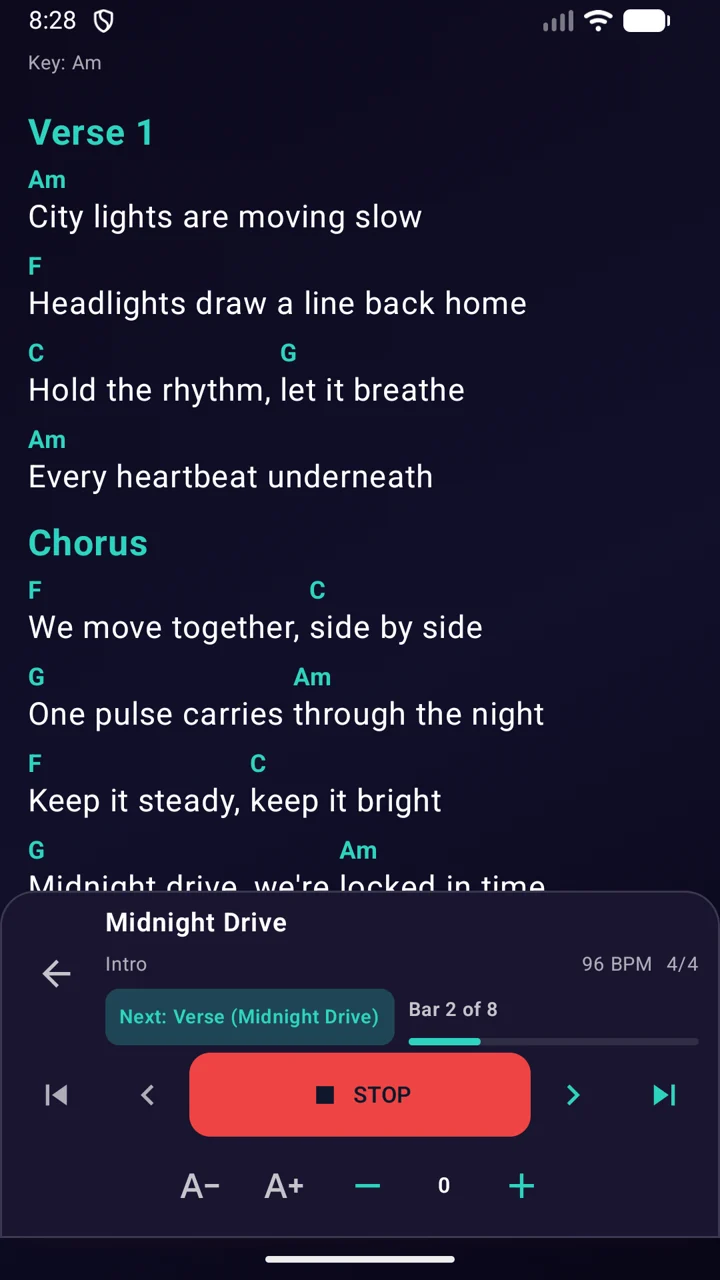
Open a song's chord sheet from the Stage screen. The permanent panel below the sheet keeps the song, section, tempo, meter, next cue, and section progress visible without covering the sheet. As leader you can start, stop, resume, change section, and move between songs there; format, text-size, and transpose controls stay in the same panel. Swipe left or right across the sheet to move to the next or previous song. The screen stays on while the viewer is open. Prefer to start there? Turn on "Open automatically" under Chord sheet in Stage settings.
Following Along Automatically
Turn on "Auto-scroll" under Chord sheet in Stage settings and a text chord sheet scrolls with your setlist. Each section's bar count decides how far the sheet travels, so it keeps pace with the tempo you are actually playing instead of a fixed speed, and the line you are on sits just below the top edge. A count-in only puts the next section in place — the sheet starts moving on the first bar you play. A section with no bar count set holds still until you move on yourself. Swipe the sheet by hand and it pauses at once, for that song only; the button in the panel resumes it and brings the sheet back to where the music is. PDF and photo chord sheets are not scrolled.
More Options
Jump to the previous/next song right from the viewer, or transpose a text chord sheet up or down. The saved file never changes, and chords are spelled to match the key you land in, so you get Bb rather than A#. When the sheet declares a key of its own and the current section has one too, the sheet is shown in the section's key, and transposing writes the new key onto that section — so the setlist, the Live screen, and your band all follow along. Without a key on either side, transposing stays a display-only offset for that song. Share a chord sheet from the song editor to back it up or send it to someone. Everything else lives together under Chord sheet in Stage settings: a text-size slider with a live sample, an optional setting that lets the PDF/photo viewer rotate to landscape on a phone, and a switch that opens the chord sheet straight away when a setlist starts.
06Band ModeOpen the band controls and pick what you are doing: "Start band session" makes this phone the leader, "Join band session" follows someone else.
Open the band controls and pick what you are doing: "Start band session" makes this phone the leader, "Join band session" follows someone else. Starting a session listens for a couple of seconds first: if another phone is already leading, you join as a follower and are asked whether you really want to take over, so a band never ends up on two tempos at once. That is the whole setup — the connection is chosen for you, and Advanced sync is only there if you want to switch to Bluetooth or check the network. Everyone needs the same SyncPulse version: after an update the app shows once what is new, so make sure the whole band updates, and the band panel warns about mixed versions. Pressing play on a follower never takes the lead while someone else is broadcasting — it just starts you on the band's tempo, and a short message tells you so. To take over, use "Lead the band".
Ableton Link (Wi-Fi)
Sync tempo and phase with other Link-enabled apps on the same Wi-Fi network automatically.
Will this network work?
While you are joining, the band panel shows one honest status: it says "Looking for leader…" for twelve seconds and only then offers Bluetooth instead. The network check lives under Advanced sync and appears only when Ableton Link is the route; open Diagnose there for VPN, guest-network, IP and subnet details. Silence on the network while another musician runs SyncPulse usually means the network blocks device-to-device traffic; use Bluetooth or a phone hotspot instead. In an open session, another band on the same Wi-Fi can take over the lead. SyncPulse tells you when that happens; a secured session keeps other bands out. No internet is needed.
Bluetooth Sync
One leader broadcasts tempo, meter, and setlist progress to multiple followers up to 20m away—no Wi-Fi needed. Bluetooth needs the Nearby devices permission. If it is missing, the band status on the main screen and on Stage reads "Grant Bluetooth permission" — tap it to allow it.
What you see while following
A follower mirrors the leader, not its own set. Under the tempo you get the song and section the leader is on, with the next one right below it, in the same size and position the leader sees them. The tempo controls (slider, TAP and count-in) are hidden while you follow, because the leader owns the tempo; the beat bars stay full size. Before anyone starts, that area is deliberately empty — you are only shown a song once the leader is actually sending one. The next cue follows the repeat or jump the leader has queued. Before a pause between songs or a fermata it reads Pause → followed by the song or section that Start will play, and the visual count-down and Companion show the same cue. In a section without a set length, it shows the next section without an extra label. After the final section of the final song the line stays empty. Count-ins also follow the leader when the tempo or time signature changes within a song. Selecting another song while paused updates the title and tempo sent to band followers. Use the current app version on all band devices for aligned natural stops. Manual Stop remains immediate.
Setlist mirror
While following, tap the band hint on Stage to see the leader's full setlist live, with the current song and the section they are on highlighted. It's read-only and never saved on your device — you can't edit, jump, or import it. Over Bluetooth, this works reliably for setlists up to about 10 songs; use Ableton Link (Wi-Fi) for bigger ones.
Chord Sheets While Following
If the leader has a chord sheet for the current song, an icon appears in the follower setlist view to open it. A pasted/typed chord sheet syncs automatically — nothing to do. A PDF or photos are never sent over the connection; pick the same file on your own device once and it is recognized automatically from then on. The permanent panel shows the leader's song, section, tempo, meter, and next cue, but never leader transport. You can close the viewer, switch between received text and a locally linked PDF or photo, and change text size. Whenever the sheet is shown in another key, you see the same chords the leader does, with the transposition offset shown in the panel.
07Display & OverlayCustomize what you see on the screen.
Overlay Styles
Choose from Dot, Edge, Bars, Screen, Pendulum, and Circle. Each choice shows a miniature preview in your beat colors. The overlay can float over other apps such as sheet-music readers.
Beat colors
Display, Colors sets your colors for the accent, second accent and normal beats. Every setlist, every song and a song you play from the library use these colors, so you set them once.
Opacity & Size
Tweak the overlay opacity so it's not distracting, and adjust the size of the setlist title bar to fit your screen perfectly.
Keeping the screen on
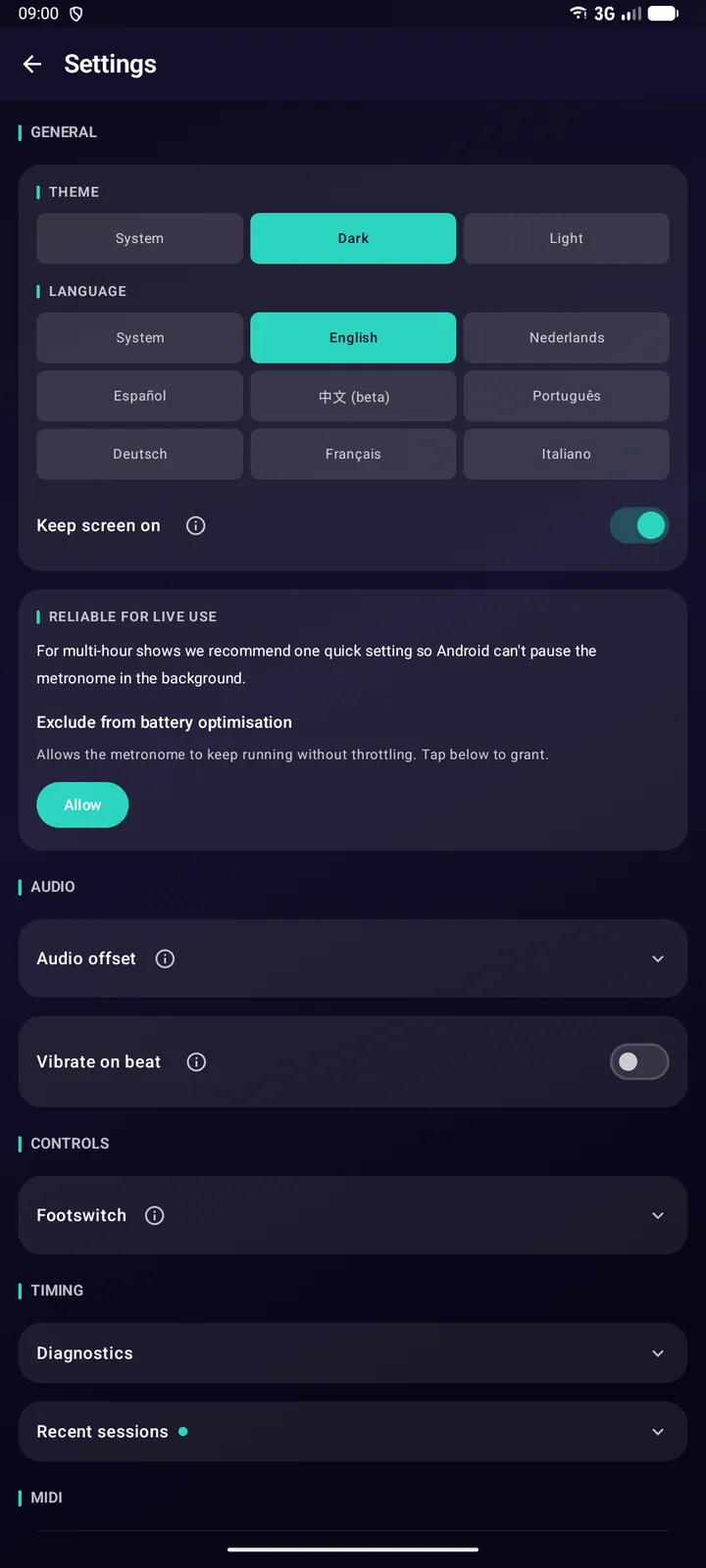
Keep screen on (Settings, General) stops your display from timing out and locking while the metronome or a setlist is running, which is what you want on stage or at rehearsal. It only holds the screen awake while a session is actually running; once you stop, the phone sleeps on its normal schedule. Simply being in a band session does not count as running: a phone that is waiting for the leader sleeps normally and wakes the moment the leader starts. It is on by default.
08Permissions ExplainedSyncPulse asks for access only when you use the related feature:
Notifications & Foreground Service
Keeps the metronome running in the background so it doesn't stop when you lock your screen.
Draw Over Other Apps
Allows the visual metronome (strobe/dot) to float over your sheet music apps.
Bluetooth / Nearby Devices
Required for connecting to Bluetooth foot pedals and syncing with band members.
Battery Optimization
By excluding SyncPulse from battery saving, you prevent Android from randomly killing the audio engine during a long set. SyncPulse asks once, before your first start, and you will always find it under Settings.
Diagnostics
Settings > Timing keeps one line for each of your last ten sessions: playing time, audio dropouts, late beats and jitter. That is where you check the morning after a gig whether the click really faltered. "Share diagnostics" sends that overview as plain text - counters, app version and device model only, never your setlists, songs or files.
Instruction source: the current English Android app resources.
Contact
Ask a question or share feedback
Use the secure form below. For a technical issue, include your Android version, app version and the steps that led to it.
Prefer email? Write directly to info@syncpulse.band.